Concepts & Architecture
App Builder is a layer on top of Vince Platform — it generates the user-facing interface for apps, while the platform handles all business logic, data access, and security. Understanding this boundary helps you reason about what is safe, what is possible, and who can do what.
How App Builder fits into Vince Platform
Vince Platform manages core infrastructure: M3 connectivity, workflow execution, table storage, user authentication, and audit logging. App Builder uses the AI to generate frontend code on top of that foundation.
The two layers are intentionally separate. An app can only reach data through the resources (workflows and tables) you explicitly connect to it — there is no direct AI access to M3 or to resources outside the app's resource list.
What the AI does
The AI's scope is limited to frontend code generation. Specifically it:
- Generates user interface components (grids, charts, forms, navigation)
- Binds those components to the resources you connected
- Applies layout, filtering, and interaction patterns based on your prompts
The AI does not:
- Execute business logic independently
- Access M3 systems directly
- Modify data outside of a workflow you explicitly connected
- Read resources you have not added to the app
Data safety
Generated apps run inside a protected sandbox. Every data request from a running app passes through Vince Platform's routing layer, which applies the same security checks as any other platform operation. Existing M3 and platform security protocols remain active.
What the AI sees during a build session
During a build session, the AI does not have access to your business data — the actual results of a workflow run or the contents of a custom table. It only receives metadata: the schema of connected workflows and tables (field names and shapes). That metadata is enough for the AI to generate code that calls the resource and displays its data correctly, without ever seeing the data itself.
The AI only receives business data if a user explicitly pastes or screenshots it into a prompt. Otherwise, everything the AI can act on is limited to:
- Schema metadata for connected resources (used internally to generate code; not shown in the chat)
- The prompt text and any files or screenshots a user attaches
- Code the AI has previously generated in that build session — when App Builder says "let me read the contents," it is reading its own previously generated files, not live business data
Prompts are sent to the AI as text. Never include passwords, API keys, or customer-identifying details in a prompt or in the Tenant Prompt. Use workflows with proper connection settings to authenticate external systems.
App Builder permission levels
App Builder access is controlled by the App Builder permission within a Vince Platform role. A tenant administrator assigns this permission to roles in Vince Platform → Administration → Access Management → Roles.
| Level | What the user can do |
|---|---|
| Read | View apps and descriptions in the Concept Catalog — cannot run or edit |
| Run | Open and use apps as an end user — cannot edit |
| Write | Build, edit, and use apps — cannot deploy to end users |
| Deploy | Build, edit, deploy, and use apps |
| All | Same as Deploy — typically reserved for tenant administrators |
Typical setup: viewers get Read, standard users get Run, developers get Write or Deploy.
How to grant App Builder access
- Go to Vince Platform → Administration → Access Management → Roles.
- Create a new role or open an existing one.
- Find the App – App Builder permission and select the appropriate level.
- Assign users or user groups to the role.
- Ask the user to sign in and confirm they can access App Builder.
App Builder permission controls access to the tool itself. Access to specific workflows and tables is governed separately by Vince Platform permissions. A user with Write App Builder access still needs the relevant workflow and table permissions to use those resources.
Resource access versus App Builder access
| What it controls | Where it is set |
|---|---|
| Whether the user can open App Builder | Vince Platform role → App Builder permission |
| Which workflows the user can add as resources | Vince Platform workflow permissions |
| Which tables the user can add as resources | Vince Platform table permissions |
| What the end user sees inside a published app | InApp Roles — see In-App Roles |
Tenant Prompt
A Tenant Prompt is an organisation-wide set of standing instructions applied to every app build in the tenant. Use it to enforce consistent branding (colours, logos, fonts), formatting conventions, and domain-specific language so all apps produced by different builders share the same look and feel.
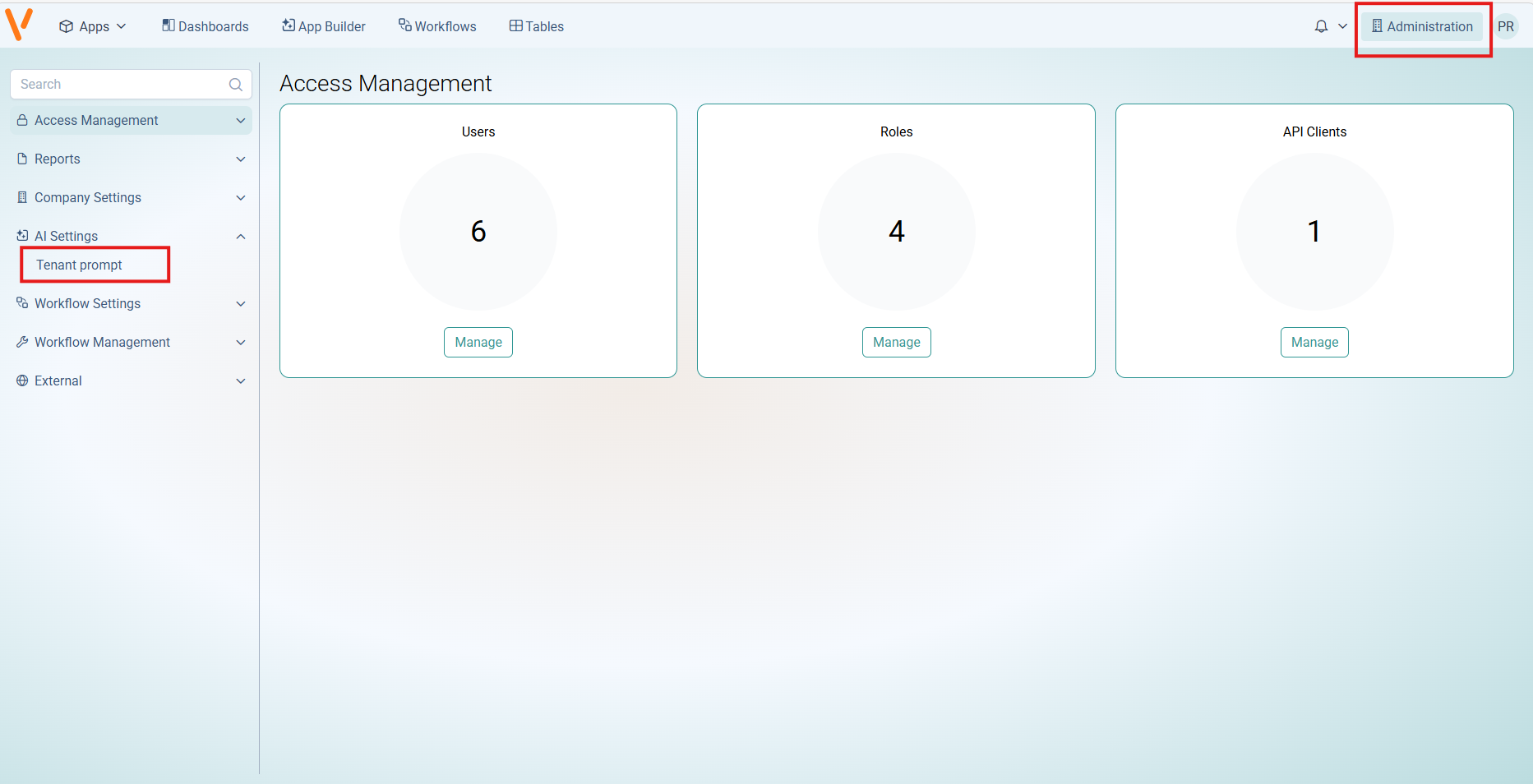
Tenant Prompts are configured by a tenant administrator in Vince Platform → Administration → AI Management → Tenant Prompt, and apply automatically — builders do not need to repeat these instructions in each individual prompt.
Why use a Tenant Prompt
- Consistency — every app built in the tenant picks up the same visual identity automatically: same colours, same logo, same look and feel.
- Less repetition — builders don't need to write "use our brand colour, use our logo" in every prompt.
- Easier handoff — apps built by different people still feel like they belong together.
What to include
- Brand — primary/secondary colours, fonts, logo URL, header banner.
- Theme — light or dark preference, button styles, spacing conventions.
- Naming conventions — how dates should be formatted, how to label common actions.
- Standard sections or footers — anything that should appear on every app.
Examples
Brand and theme "Use our brand colours (primary #1A73E8, secondary #34A853). Place the company logo at the top-left of every app. Use a clean, professional theme with a light background."
Formatting conventions "Always format dates as DD/MM/YYYY. Show all quantities with two decimal places. Use 'kg' for weight and 'pcs' for piece counts by default. Display item numbers in the format ITEM-XXXX."
Standard behaviours "Every app should include a footer with our support email address. Always show a confirmation dialog before any delete or send action. Label primary actions as 'Save' (not 'Submit') and 'Cancel' (not 'Close')."
Domain language "This is a supply-chain tenant. Use 'warehouse' instead of 'location' where it applies. Group items under their region. When showing suppliers, always include the supplier code in parentheses next to the name."
Talk to your tenant administrator if you want to update or extend the Tenant Prompt for your organisation.
Further reading
- Security & Roles — least-privilege guidance, external users, and audit logs
- In-App Roles — per-app visibility control
- Prompting — how to write effective prompts