Export Data from a REST API to VXL Live
VXL Live lets business users pull data into Excel without touching a database or writing code. This guide builds a workflow that calls a public REST API, reshapes the response into a flat table, and delivers it to Excel through VXL Live.
What you'll build
- A workflow tagged so it appears in VXL Live.
- A REST API step that fetches data from an external endpoint.
- A Transform step that reshapes the response into a flat, Excel-compatible table VXL Live can write straight into the sheet.
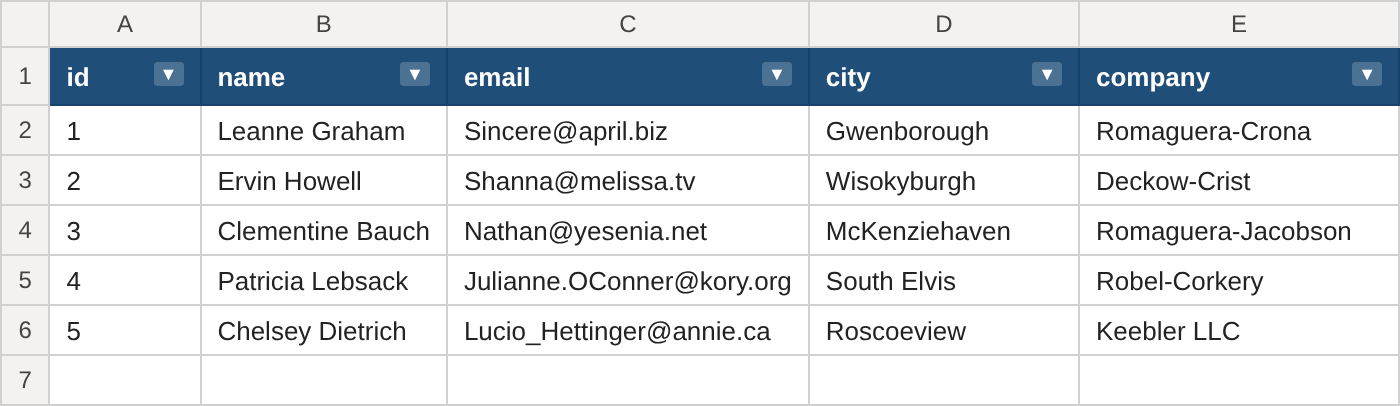
The example below fetches a small user directory from a public test API (no login required) and turns it into a five-column sheet: id, name, email, city, and company.
Prerequisites
- Familiarity with creating a workflow.
- If your own endpoint requires authentication, set up a Connection first. The example below calls a public endpoint, so no connection is needed.
Step 1 — Create the workflow and tag it for VXL Live
Create a new workflow as usual. While filling in the descriptors, add VXL under Labels:

A workflow without an Excel step must have the VXL label to appear in the VXL Live workflow list. The Excel step does not work with the REST API component, so for this workflow the label is required. The workflow also needs a Manual trigger; see Why can't I see my workflow?
Step 2 — Add a REST API step
Add a REST API component and configure it:
| Setting | Value |
|---|---|
| Use connection | Off — this example calls a public endpoint |
| Endpoint URL | https://jsonplaceholder.typicode.com/users |
| HTTP Method | get |
| Headers | (none needed) |
This returns an array of user records, each with nested address and company objects — not yet suitable for a spreadsheet. That's what the next step is for.
If your own endpoint needs a login, turn on Use connection and pick the Connection you set up beforehand.
Step 3 — Reshape the response with Transform
Excel needs a flat array of objects, where every object has exactly the same set of keys. Add a Transform step with the following JSONata expression to flatten the nested fields and keep only the columns we want:
$context.data.all.rest_api_1.body.{
  "id": id,
  "name": name,
  "email": email,
  "city": address.city,
  "company": company.name
}
rest_api_1 is the ID of the REST API step from Step 2. Naming the step, rather than writing $.body, makes it clear where the data comes from. See How step IDs are formed.
The first five results look like this:
[
  { "id": 1, "name": "Leanne Graham", "email": "Sincere@april.biz", "city": "Gwenborough", "company": "Romaguera-Crona" },
  { "id": 2, "name": "Ervin Howell", "email": "Shanna@melissa.tv", "city": "Wisokyburgh", "company": "Deckow-Crist" },
  { "id": 3, "name": "Clementine Bauch", "email": "Nathan@yesenia.net", "city": "McKenziehaven", "company": "Romaguera-Jacobson" },
  { "id": 4, "name": "Patricia Lebsack", "email": "Julianne.OConner@kory.org", "city": "South Elvis", "company": "Robel-Corkery" },
  { "id": 5, "name": "Chelsey Dietrich", "email": "Lucio_Hettinger@annie.ca", "city": "Roscoeview", "company": "Keebler LLC" }
]
Keep every object's keys identical
If a record omits a key entirely, the export fails or produces ragged columns. Always keep the same keys on every object, using null for a missing value rather than dropping the key.
Breaks the export — record 2 is missing city and company, record 3 is missing name and city:
[
  { "id": 1, "name": "Leanne Graham", "city": "Gwenborough", "company": "Romaguera-Crona" },
  { "id": 2, "name": "Ervin Howell" },
  { "id": 3, "company": "Robel-Corkery" }
]
Works — every object has all four keys, with null where data is missing:
[
  { "id": 1, "name": "Leanne Graham", "city": "Gwenborough", "company": "Romaguera-Crona" },
  { "id": 2, "name": "Ervin Howell", "city": null, "company": null },
  { "id": 3, "name": null, "city": null, "company": "Robel-Corkery" }
]
VXL Live renders null as a blank cell.
Step 4 — Run the workflow from VXL Live
Open VXL Live in Excel, find the workflow by name, choose an environment, and click Run — see Running Workflows for the full walkthrough.
The result is written into the open sheet as an Excel table, starting in cell A1. If the sheet already contains an Excel table, its rows are replaced and the columns are matched by their heading; see How VXL Live Reads Your Sheet.
If the run fails, open the Logs panel and check the Problems tab — see Design File, Instructions & Logs.
Further reading
- REST API component — full reference, including headers, connections, and looping over multiple records with For each
- Transform component — JSONata reference for reshaping data
- Connections — set up authentication for endpoints that require it
- Combine Multiple M3 API Calls into a Single REST Call — a related pattern for turning several M3 calls into one clean REST response