Error Handling Deep Dive: executionKeys and customStatus
A workflow that runs without errors hasn't necessarily done its job. An API can return 200 OK and still have rejected half of what you sent. And when someone asks "what happened to order 12345?", you need a way to find that one execution among thousands.
Vince Platform gives you two tools for this:
- executionKeys let you find any execution by a business value, such as an order number, item number, or customer ID. The search works within one workflow or across all of them.
- customStatus lets you decide what "success" means for each workflow, based on what actually happened rather than only on HTTP status codes.
Together, they give you full monitoring control over your integrations.
Where to configure them
Both executionKeys and customStatus are set in the same place: open the workflow you want to configure, click the three dots (⋮) next to the workflow name at the top of the editor, and select Execution Keys. This opens the panel where you define your executionKey expressions and your customStatus expression.
To set up a custom status, click Add Custom Status in that panel. It adds a key with the fixed name CustomStatus, which is always pinned first in the list.
executionKeys: make every execution findable
What they are
An executionKey is a JSONata expression that you define on a workflow. Each workflow can have up to 9 keys.
The expression is evaluated against the execution log, so it can read a value from anywhere in the run: the trigger payload, the output of rest_api_1, or a later step such as rest_api_3. You aren't limited to what came in — if an order number only appears after the second API call, you can take it from there.
Why they matter
Every executionKey is indexed and searchable. If you define orderNumber as key 1, every run of that workflow is stored with its order number attached. When a customer or colleague asks about a specific order, you search for the number and go straight to the execution — you can see what came in, what each step did, and where it failed.
Search across all workflows
The search isn't limited to one workflow. If several workflows handle the same order number, a single search returns every execution across all of them.
An item change is a good example. It often touches several integrations: the price engine, the retail system, a PIM or webshop, and M3 itself. With executionKeys defined on each of these workflows, one search shows the whole journey of that item through your landscape.
Choosing good keys
- Use business identifiers people actually ask about, such as order number, item number, or customer number. Internal IDs nobody will search for are wasted keys.
- Keep formats consistent across workflows. Cross-workflow search only works if the same item number is stored in the same way everywhere — watch for leading zeros, prefixes, and number-vs-string differences.
- Add context keys where useful. A warehouse, company/division, or country code helps you narrow results when one identifier appears in many runs.
Example: a key named OrderNumber with the expression:
$context.data.trigger.body.orderNumber
This reads the order number straight from the trigger payload. This is just an example — the field path, the step you read it from, and even whether you use trigger data at all will differ for each workflow and scenario.
customStatus: define what "success" means
What it is
customStatus is also a JSONata expression, evaluated against the execution log in the same way as executionKeys. Its job is different: it should resolve to either SUCCESS or FAILED.
Like executionKeys, customStatus is searchable across all workflows. This makes it the foundation for monitoring: you can list every failed execution in your environment, regardless of which workflow produced it.
Why it's an expression, not automatic
Integrations fail in very different ways:
- Some APIs fail loudly. They return an HTTP error code (4xx/5xx), and the failure is obvious.
- Many APIs fail quietly. The HTTP call succeeds, and the real result is somewhere in the response body.
The Infor M3 execute API is a typical quiet failure. If you send 10 transactions and one of them fails, the response is still 200 OK. Nine transactions went through, and the failed one is only visible inside the response. Judging by the HTTP code alone, the run looks like a success.
No single rule covers every API, so you write the rule yourself. customStatus lets you inspect the actual response and decide what really happened.
A worked customStatus example for the M3 execute case (checking the failed-transaction count or scanning results for error messages) is planned as a follow-up once real M3 execute response field names have been confirmed. See the Combine Multiple M3 API Calls guide in the meantime for the general shape of an M3 execute response.
Writing a good customStatus
- Check the business result, not only the transport. Ask what would have to be true for the run to have done its job.
- Only return
SUCCESSorFAILED. Keeping to these two values is what makes cross-workflow monitoring work. - Default to
FAILEDwhen you're unsure. An expression that falls through toSUCCESSwhen a field is missing will hide exactly the errors you want to catch.
Example:
$context.data.all.rest_api_2.statusCode = 200 ? 'SUCCESS' : 'FAILED'
This checks the HTTP status of the step named rest_api_2 and resolves to SUCCESS only when it's 200. This is just an example — which step to check, what counts as success, and how to express it will differ for each workflow and scenario.
Putting it together: monitoring
For a built-in way to track failed executions, use Workflow Monitoring in the administration area: it lists failed executions across your workflows and lets you verify or retry them.
With executionKeys and customStatus defined on your workflows, you also have what you need to build your own monitoring. Both are exposed through the Vince Platform APIs, so you can build dashboards and search tools that fit how your team works.
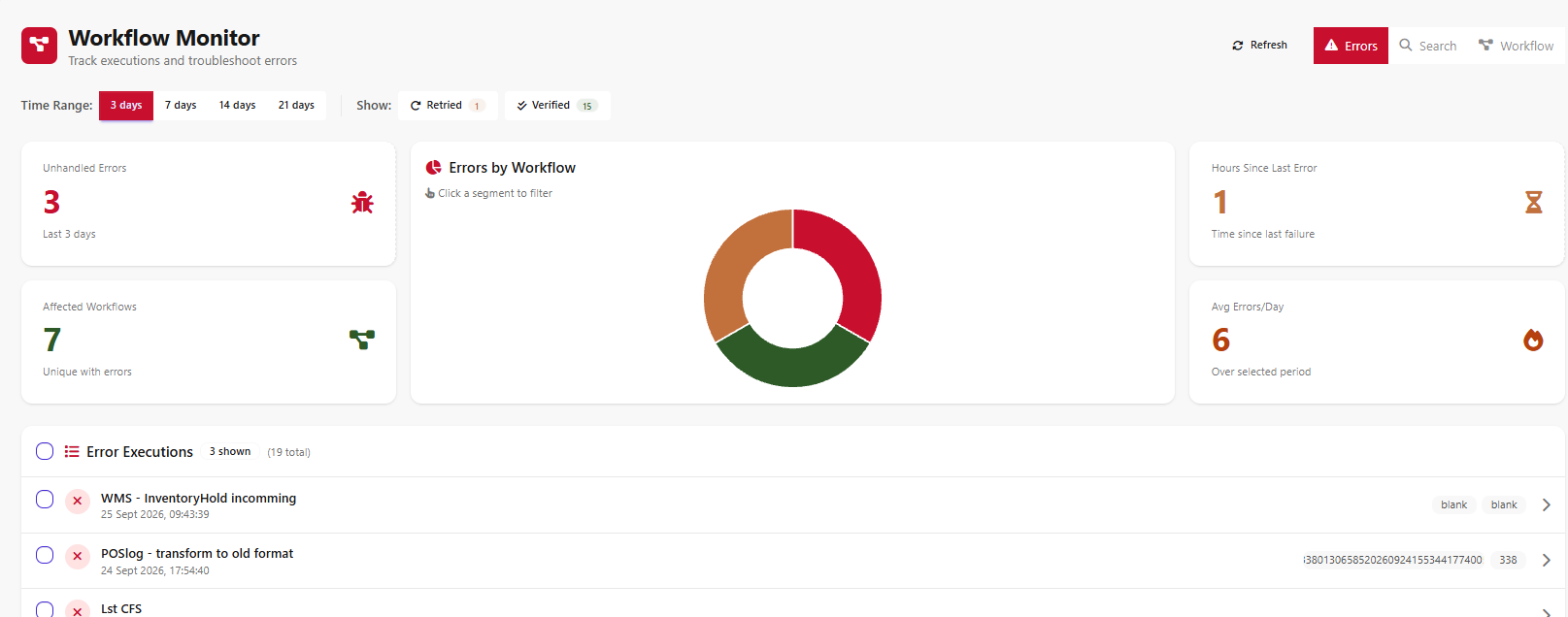
A sample error overview app built on the Vince Platform APIs. It shows unhandled errors over a selected period, the number of affected workflows, an errors-by-workflow breakdown, and a list of error executions with their executionKey values.
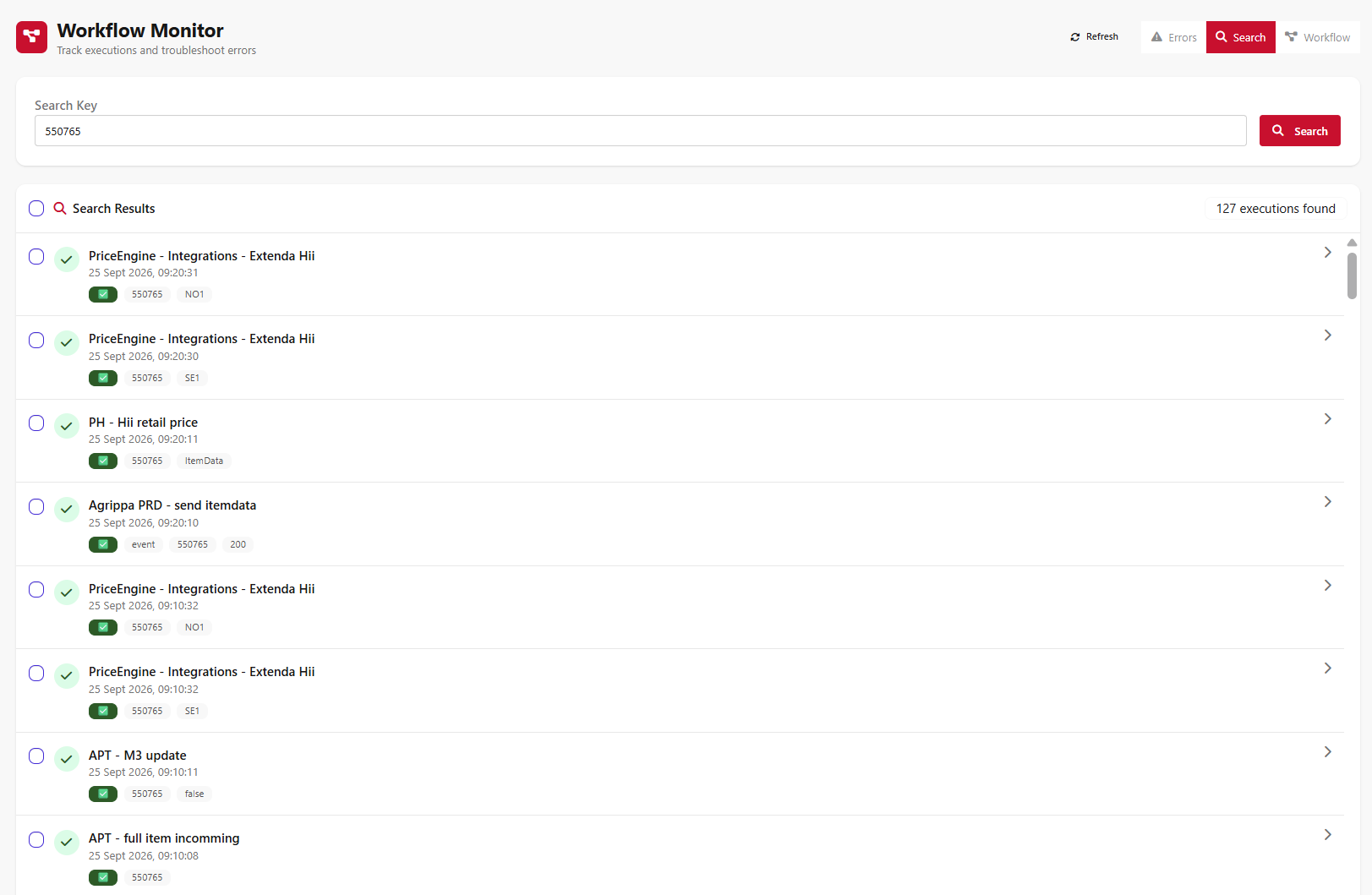
A sample cross-workflow search app, also built on the Vince Platform APIs. Searching for a single executionKey value returns matching executions across every workflow that uses it.
Both apps are samples, not built-in features — they show what's possible with the available APIs.
Further reading
- Execution Logs — view individual runs, including the data these expressions read from
- Workflow Monitoring — track, verify and retry failed executions
- Workflow Statistics — aggregate execution counts and success rates across all workflows
- Transform component — JSONata reference, the same expression language used by executionKeys and customStatus
- Combine Multiple M3 API Calls into a Single REST Call — a related pattern for working with the M3 execute API's response shape