Configure an Ephemeral Router in M3 Grid
This guide walks through creating a dedicated router in Infor ION Grid and enabling ephemeral sessions on it, so M3 sessions established for a request are disconnected immediately once that request finishes. Without it, sessions from disconnected callers stay open and can overload the M3 Grid.
You need this router when Vince Platform calls an on-prem M3 directly (Solution 3), whichever proxy or firewall you put in front of it. If an ephemeral router is already set up, you can reuse it.
1. Create the router
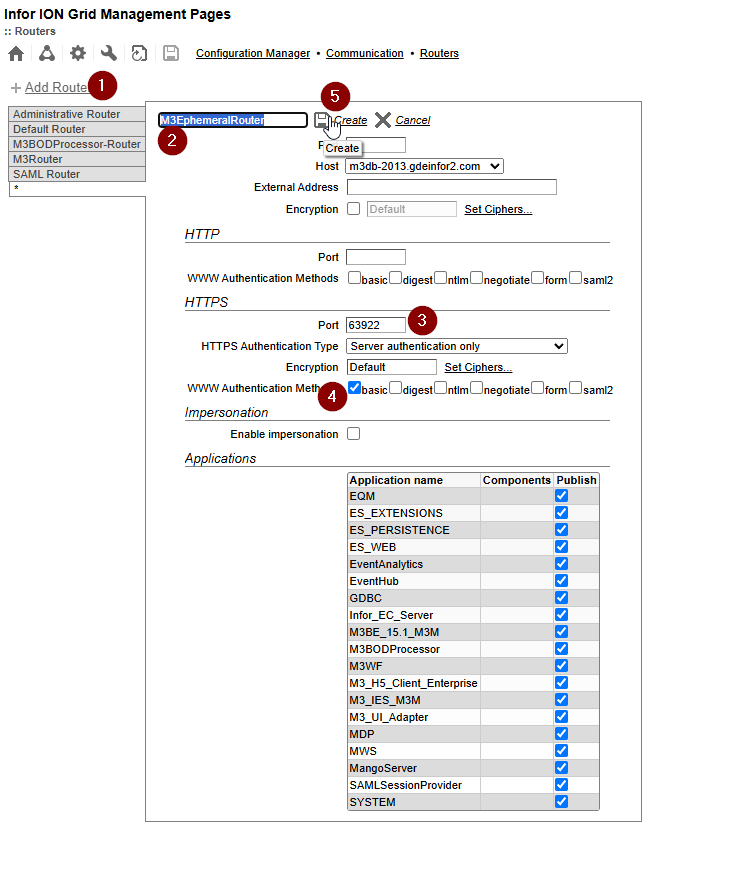
- In Infor ION Grid Management Pages, go to Configuration Manager → Communication → Routers.
- Click + Add Router and give it a descriptive name, e.g.
M3EphemeralRouter. - Under HTTPS, set Port to a reasonable, unused port — 63922 is a commonly used standard port for M3 PRD.
- Under WWW Authentication Methods (HTTPS), enable basic.
- Click Create.
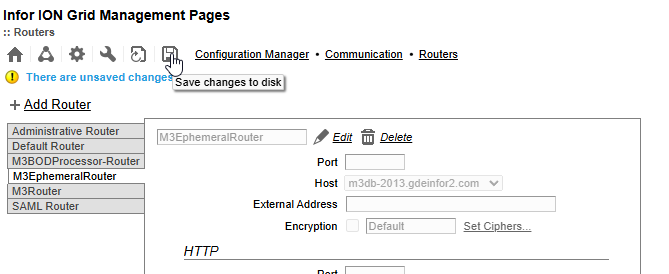
Click the Save changes to disk icon to persist the new router.
2. Enable ephemeral sessions
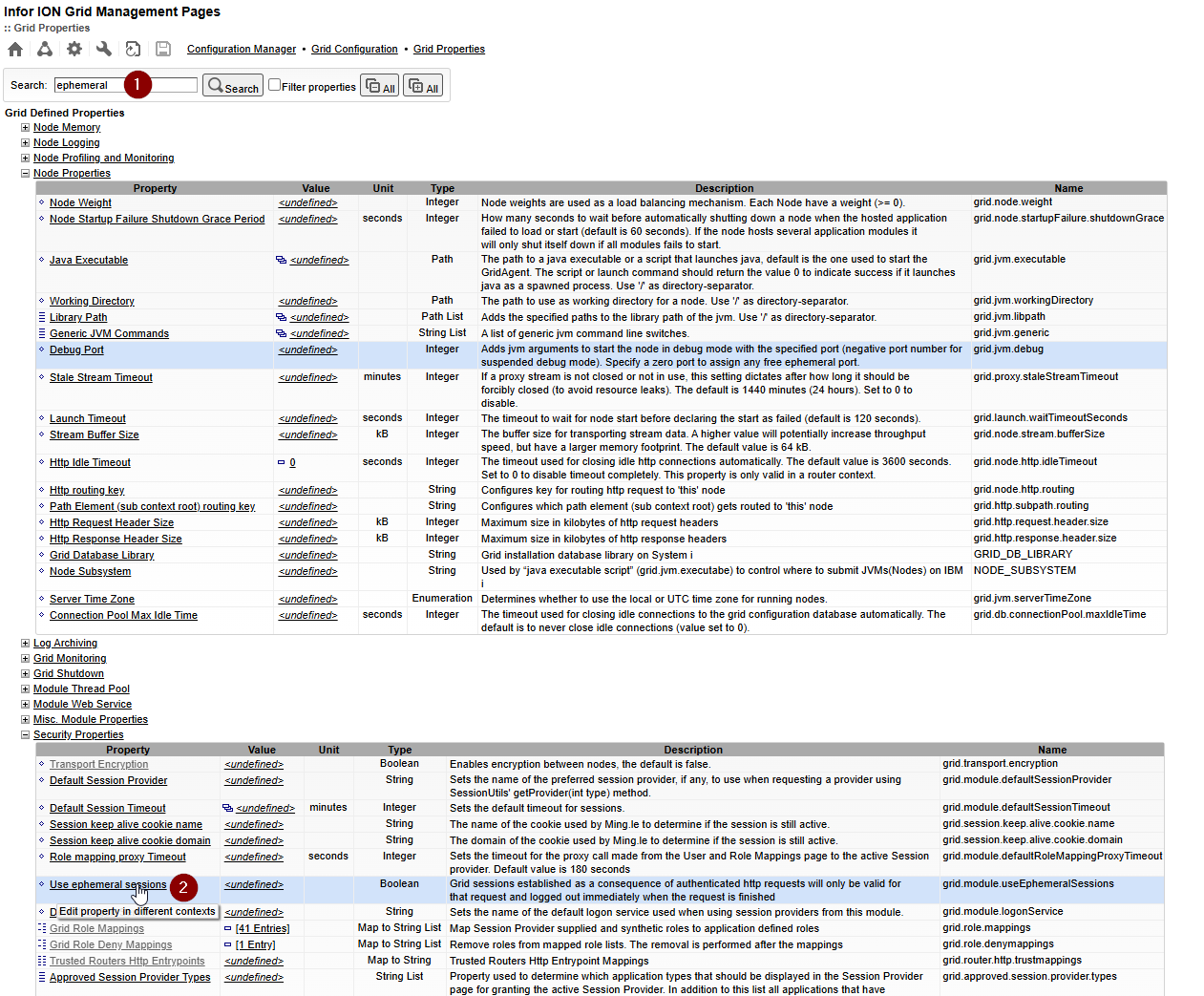
- Go to Configuration Manager → Grid Configuration.
- Search for ephemeral and open the Use ephemeral sessions property.
- In the Property Context Value Matrix, find the row for the router you created (e.g. M3EphemeralRouter) and click its Any Host value.
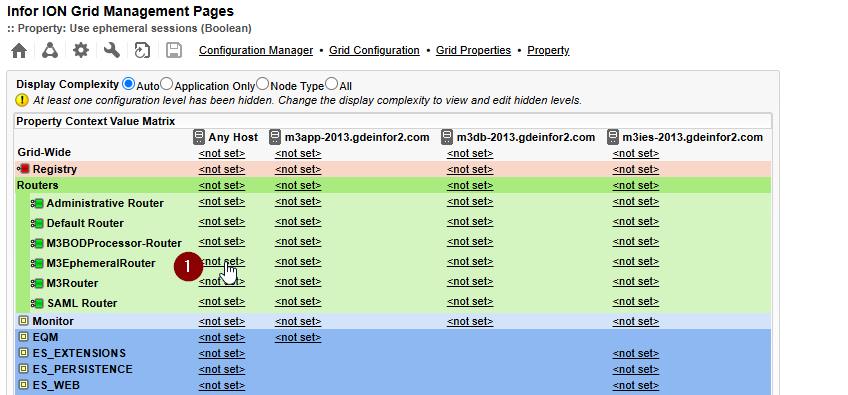
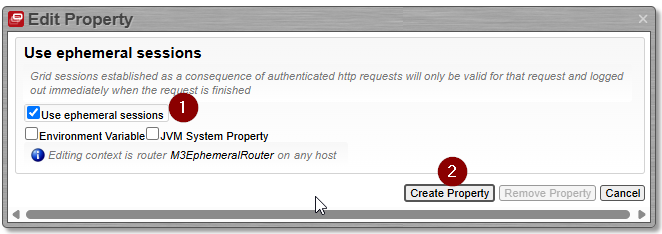
- In the dialog, check Use ephemeral sessions, then click Create Property.
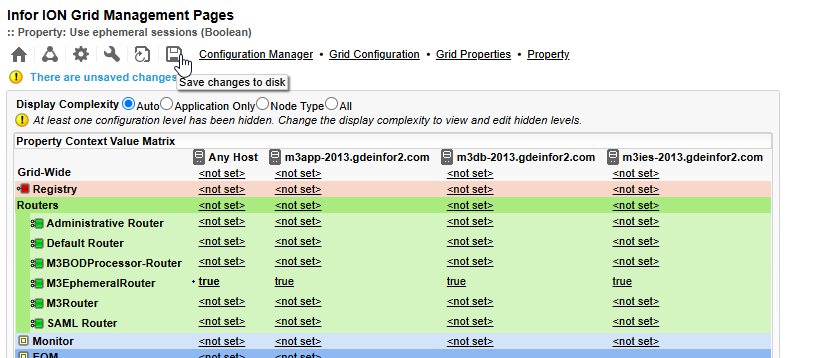
- Click Save changes to disk. The router's row should now show true across all hosts.
3. Verify on the M3 BE application
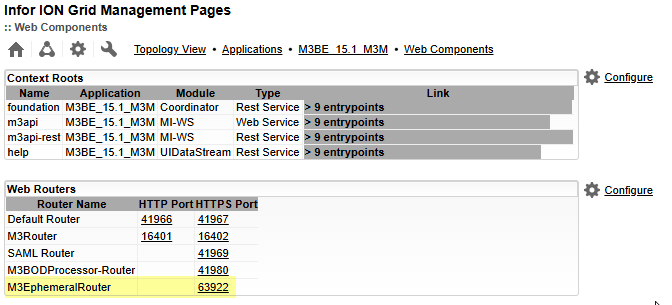
Go to Grid → Applications → M3 BE → Web Components and confirm the new router appears in the Web Routers list with the HTTPS port you configured (e.g. 63922).