Data Lake Usage Overview
A simple way to find out more about your Infor Data Lake usage is to create a workspace dashboard with statistics in Infor OS.
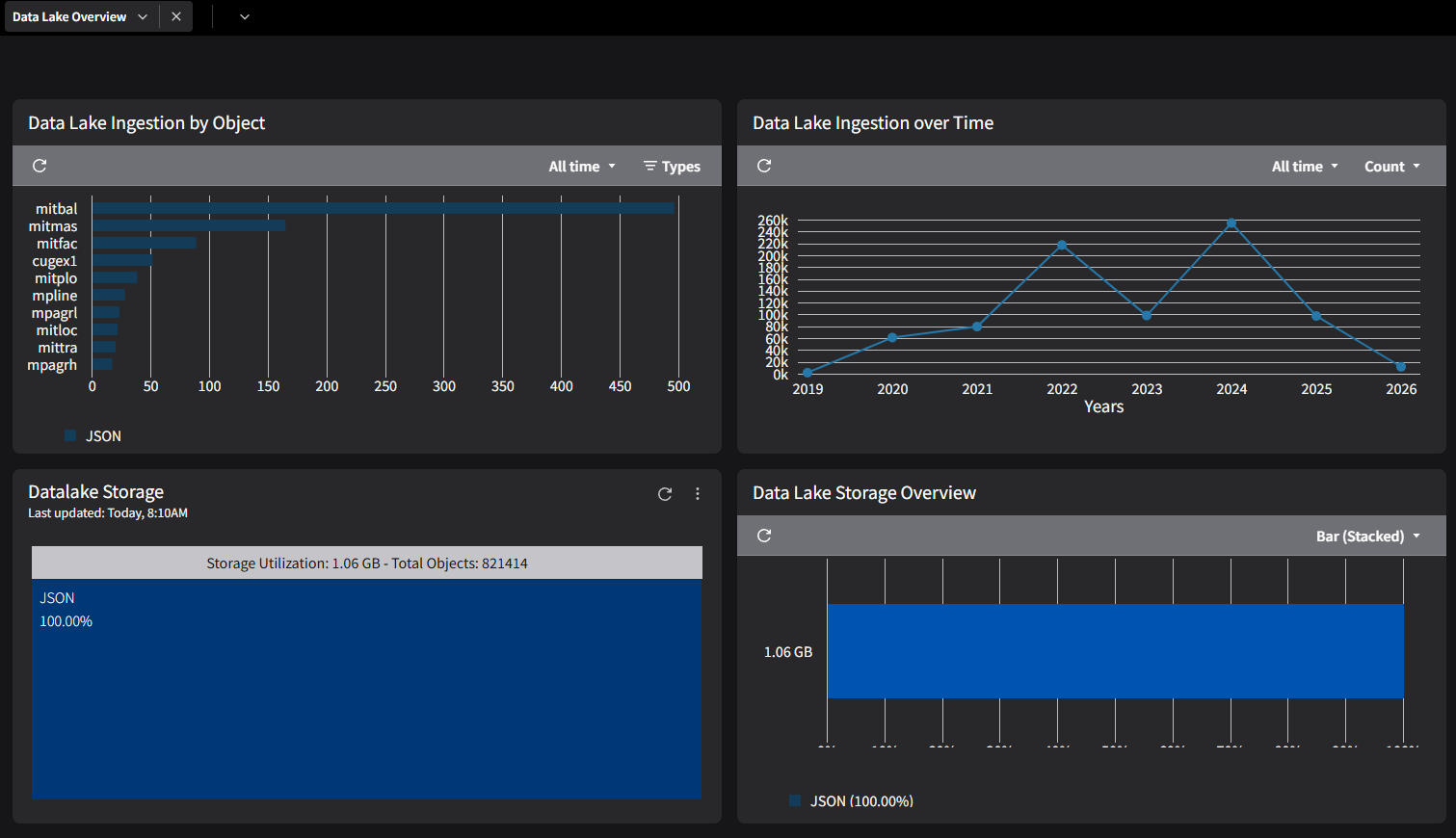
Example dashboard
The dashboard below combines four Data Lake widgets: ingestion by object, ingestion over time, and two storage overview widgets.
Step-by-step guide
-
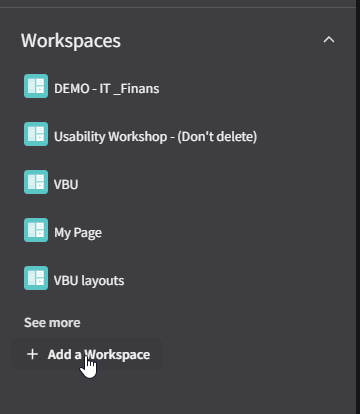
In Infor OS, open the Workspaces panel and click + Add a Workspace.
-
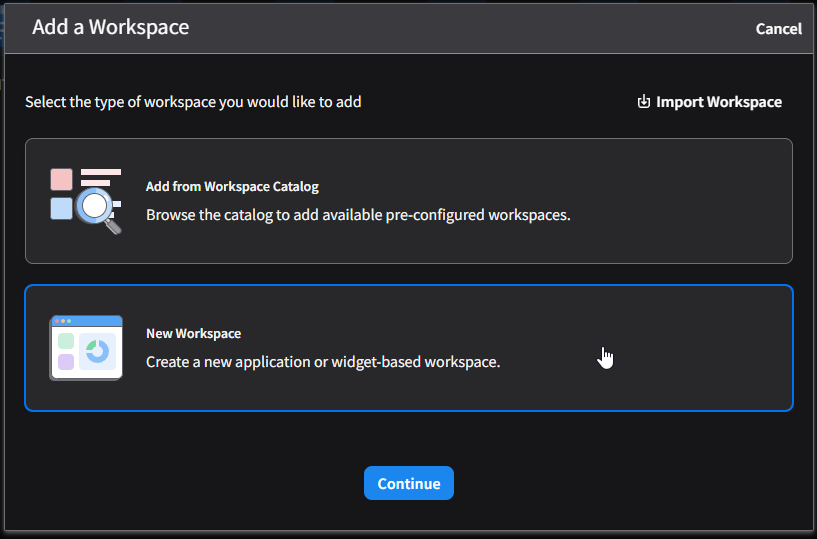
In the Add a Workspace dialog, select New Workspace.
-
Name the workspace (for example
Data Lake Overview) and select Widgets as the workspace foundation.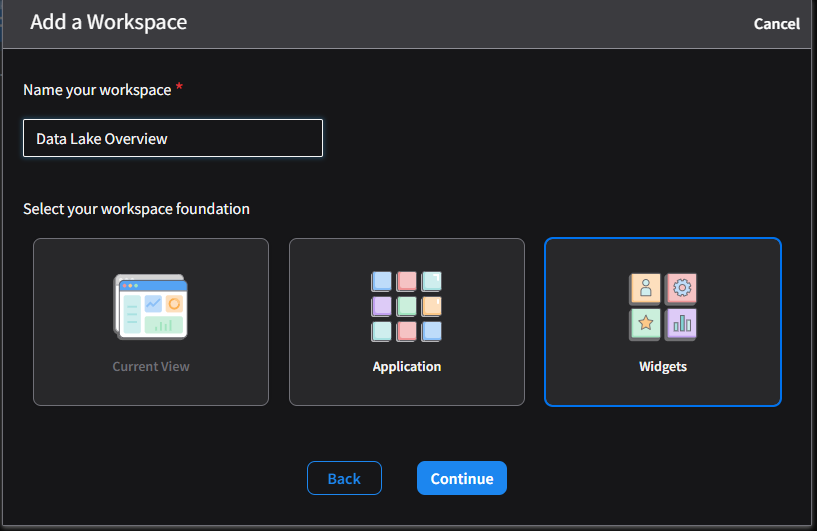
-
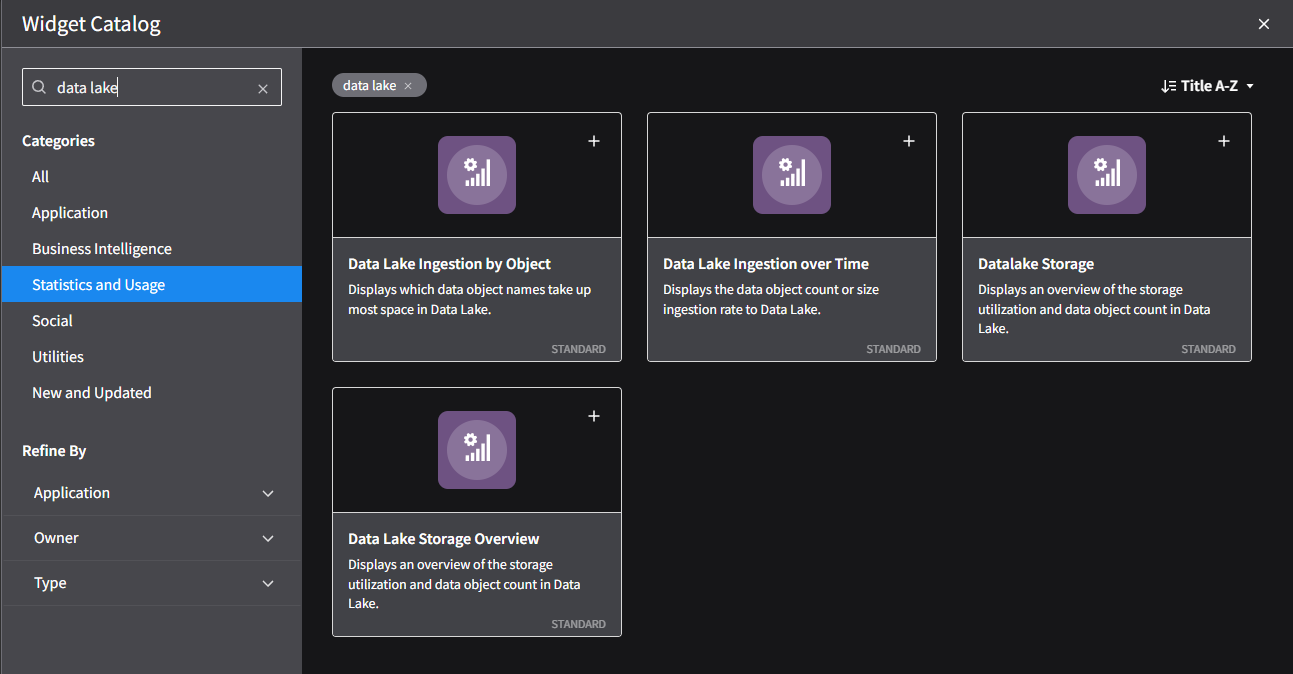
Click Continue, then in the widget catalog search for
data laketo filter down to the relevant widgets:- Data Lake Ingestion by Object
- Data Lake Ingestion over Time
- Datalake Storage
- Data Lake Storage Overview
-
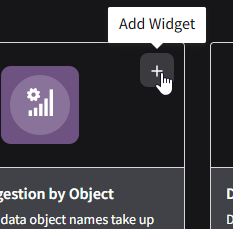
Click + on each widget you want to add to the dashboard.
-
Close the widget selector, rearrange the widgets on your dashboard as needed, and click Save.
Available widgets and exact labels may vary slightly by Infor OS version and tenant configuration.